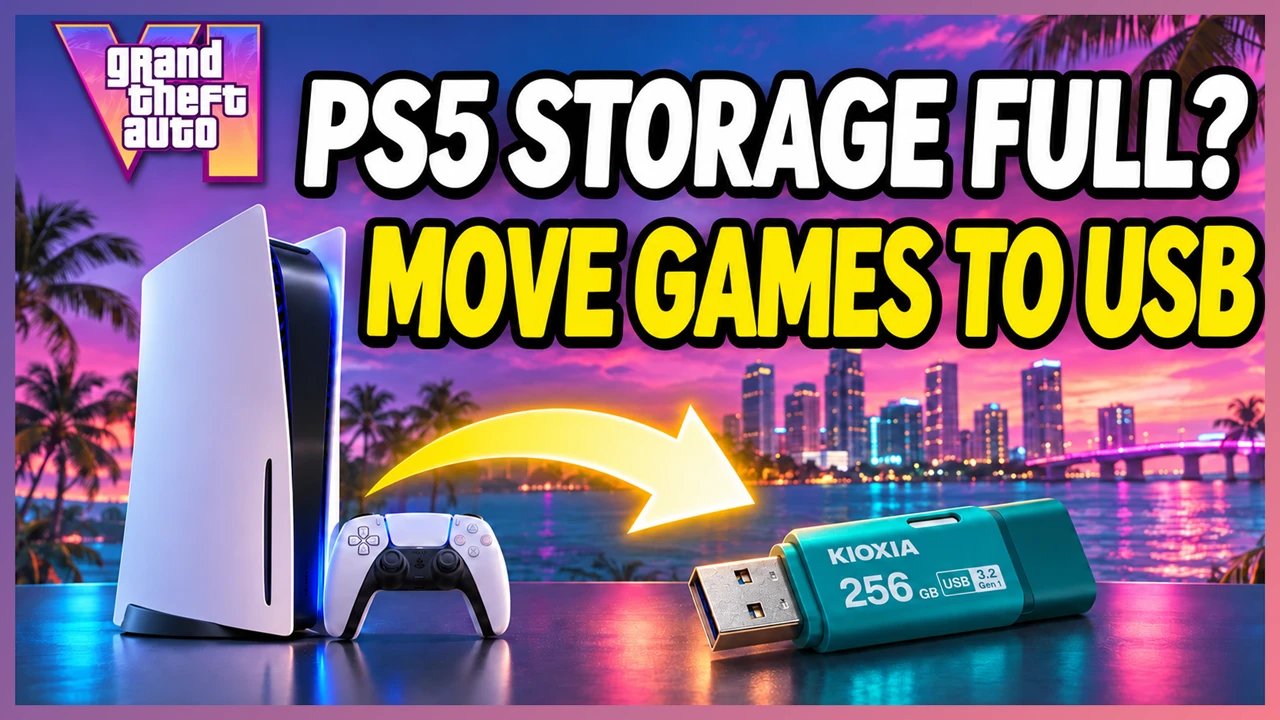
Need more space on your PS5 for GTA 6? Moving existing games to USB extended storage can free up room. This guide compares storing games on USB with deleting and downloading them again, explains compatible drives and setup, and shows where saved data and captures can be stored.
Free Up PS5 Space for GTA 6
GTA 6 requires up to 212 GB of free space for pre-loading, depending on the platform. If your PS5 is short on space, move games you are not currently playing to USB extended storage.
Choose a compatible drive and connect it to your PS5
Free up console storage
Use the space you have made available
PS5 games cannot be played directly from USB extended storage. To play a stored game, copy it back to the PS5’s built-in console storage or an M.2 SSD installed inside the console.
Pros and Cons of Moving Games to USB
Pros
- Move existing games to free up console storage.
- Save download data when you copy games back later.
- Depending on your connection and drive, copying back may be faster than downloading again.
Cons
- PS5 games must be copied back before playing. PS4 games can be played directly from USB extended storage.
- Some drives may transfer games more slowly than your internet connection can download them.
- Game-formatted USB extended storage cannot be used for saved data or captures.
USB Copy or Redownload: Which Is Faster?
If you delete a game, you need to download it again to play. If you move it to USB extended storage, copy it back to console storage or an internal M.2 SSD. Compare your actual download speed with the speed at which your USB drive copies games back.
| Connection | Theoretical maximum | Equivalent MB/s |
|---|---|---|
| PS5 wired Ethernet | 1 Gbps (1,000 Mbps) | 125 MB/s |
| USB 3.2 Gen 1 | 5 Gbps (5,000 Mbps) | 625 MB/s |
| USB 3.2 Gen 2 | 10 Gbps (10,000 Mbps) | 1,250 MB/s |
These are interface limits, not guaranteed transfer speeds. The 1 Gbps figure applies to wired Ethernet, not Wi-Fi. Drive performance, the files being copied, network conditions, and server load affect actual speeds.
For example, a USB drive copying back at an average of 50 MB/s is equivalent to 400 Mbps. If your download speed is 100 Mbps, USB may be faster; at 800 Mbps, downloading may be faster. This is an example, not a measurement of the KIOXIA drive below. A connection test is also only a snapshot of network performance.
See how to check your PS5 download speed for the steps.
PS5 USB Extended Storage Requirements
- Connection: SuperSpeed USB 5 Gbps or later (see supported standards below).
- Capacity: 250 GB minimum and 8 TB maximum.
- Connection method: connect directly to the PS5, without a USB hub.
| Standard speed | USB names on products |
|---|---|
| 5 Gbps | USB 3.0 / USB 3.1 Gen 1 / USB 3.2 Gen 1 |
| 10 Gbps | USB 3.1 Gen 2 / USB 3.2 Gen 2 / USB 3.2 Gen 1×2* |
| 20 Gbps | USB 3.2 Gen 2×2* |
* On PS5, Gen 1×2 devices operate at 5 Gbps and Gen 2×2 devices at 10 Gbps. Meeting these requirements does not guarantee that every drive works. See our planned KIOXIA test.
Only one USB extended storage drive can be used at a time. PS5 USB ports vary by model; check the PlayStation USB ports guide. A drive’s advertised interface speed is not the same as its actual read or write speed, and available space after formatting can differ from its advertised capacity.
KIOXIA USB Drive Test
We plan to test a 256 GB KIOXIA TransMemory U301 (KLU301A series) on PS5. We will identify the exact model tested and report whether it works, its usable capacity, and transfer times after the hands-on test.
- Recognition, formatting, and usable capacity
- Time to move games to the drive
- Time and average speed when copying games back
- Whether a copied-back game launches normally
- Comparison with download speed
This drive has not yet been tested on our PS5. Its compatibility and actual speeds remain to be verified.
Set Up USB Extended Storage and Move Games
Formatting a USB drive as extended storage erases its existing data. Save any files you need elsewhere first.
Format Your USB Drive
- Connect a compatible USB drive directly to a SuperSpeed USB port on your PS5.
- Go to Settings > Storage > USB Extended Storage.
- Select Format as USB Extended Storage.
Move a PS5 Game to USB
- In Game Library, highlight the game and press the Options button.
- Select Move Games and Apps and choose the items to move.
- Select Move and wait for the transfer to finish.
Copy a PS5 Game Back
- In Game Library, find the game on USB extended storage.
- Press the Options button and select Copy.
- Once copying is complete, launch the game.
Make sure the destination has enough free space. To disconnect the drive safely, turn off the PS5 completely or go to Settings > Storage > USB Extended Storage > Safely Remove from PS5.
Can You Save Data and Captures to USB?
USB extended storage for games uses a different format from a regular USB drive used for individual saved-data copies and captures. A regular FAT or exFAT USB drive can also hold a PS5 console backup.
Scroll the table sideways to see all storage locations. A check mark means the data can be stored there.
| Data type | USB extended storage | USB drive | Built-in console storage | Internal M.2 SSD | Cloud |
|---|---|---|---|---|---|
| PS5 games | ✓*1 | Backup*2 | ✓ | ✓ | — |
| PS4 games | ✓ | Backup*2 | ✓ | ✓ | — |
| PS5 saved data | — | Backup*2 | ✓ | — | ✓*3 |
| PS4 saved data | — | ✓ | ✓ | — | ✓*3 |
| Screenshots and video clips | — | ✓*4 | ✓ | — | — |
*1 Copy PS5 games back to console storage or an internal M.2 SSD before playing. PS4 games can run from USB extended storage.
*2 Included as part of a console backup, not an individual file copy.
*3 PlayStation Plus membership is required.
*4 Captures can be copied to USB but cannot be copied back to PS5 console storage.
Saved Data Stays on the Console
Moving a game to USB leaves its saved data on your PS5. Copying the game back does not erase or overwrite the other data left on the console. To free up space used by saves, see Free Up Space Used by Saved Data.
Free Up Space Used by Saved Data
A regular USB drive can hold saved data as part of a console backup; see USB Backups for Repairs and Console Replacement.
PlayStation Plus cloud storage can be used if you want to remove saved data from the console to free up space. Uploading alone does not free space: verify the cloud copy and its date before deleting the console copy. Download it again when needed, and check your automatic sync settings. Game files are often much larger, so moving games may free more space.
Copy Screenshots and Videos to a USB Drive
Use Media Gallery to copy captures to a regular USB drive. Verify the copies before deleting them from the console. Captures cannot be copied back from USB to PS5 console storage.
USB Backups for Repairs and Console Replacement
A PS5 console backup on a regular USB drive can include games and apps, saved data, captures, and settings. You can select the types of data to back up.
A backup helps with recovery or transferring data to another console. To move games temporarily and free up console space, use USB extended storage. See the storage comparison for what each option can hold.
Restoring a PS5 backup erases current console data before restoring the backup. Check the backup date and protect any newer saved data and other files before continuing.
Games moved to a separate USB extended storage drive before a restore can be copied back afterward. Game storage and console backups use different formats, so use separate drives for these purposes.
Frequently Asked Questions
Does deleting a game also delete its saved data?
No. Games and saved data are managed separately. Your saves remain unless you delete them separately.
Can I play a PS5 game directly from USB extended storage?
Copy it back to built-in console storage or an internal M.2 SSD first. PS4 games can be played directly from USB extended storage.
Can a 256 GB USB drive store GTA 6?
256 GB meets the minimum advertised capacity requirement. Whether a particular drive works and has enough usable space depends on the device, formatting and the actual game size. Copy a PS5 game back before playing.
Do I need PlayStation Plus to move games to USB?
No. PlayStation Plus is required for cloud saved-data storage, not for moving games to USB extended storage.